
Saved views
Saved views let you create, name, and easily access custom test views within Buildkite Test Engine. This is useful for teams who frequently search using the same set of tags or labels.
You can create saved views from three locations:
- The test suite's Summary page in Test Engine
- The test suite's Tests page in Test Engine
- The Tests tab on a build page in Buildkite Pipelines
Saved views created from any of these locations are shared across your Buildkite organization or test suite and are visible to all users.
Creating views from the Summary or Tests page
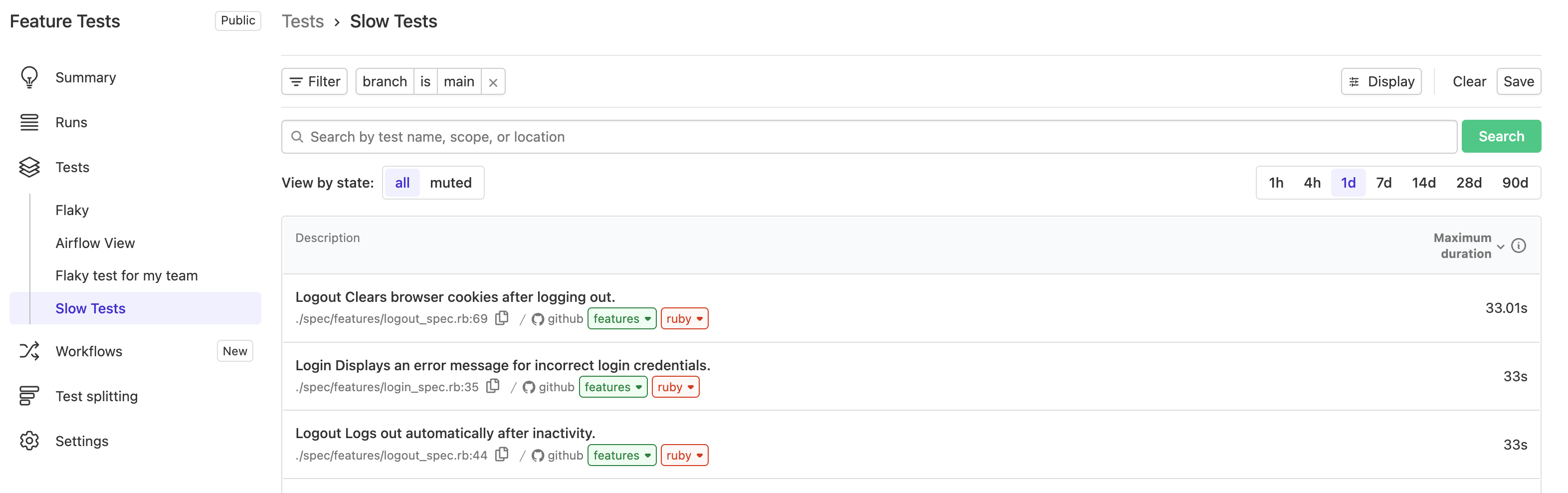
- On the test suite's Summary or Tests page, select Filter, then select as many filter values as you would like.
- Select Display, then select the columns you would like to appear in your view.
- Select Save in the filter bar.
-
Select one of the following options:
- Save as default view: Available on the Summary page only. Sets the view as the default for the test suite.
- Create a new view: Available on both the Summary and Tests pages. Give your view a name, then select Save view.
Creating views from the build Tests tab
You can also create a default saved view directly from the Tests tab on a build page.
This feature is only available to users who are Buildkite organization administrators.
- Navigate to a build page and select the Tests tab.
- Select Filter, then select your desired filter values.
- Select Display, then select the columns you would like to appear in your view.
- Select Save in the filter bar.
- Select Save as default view.
This view will now be the default Tests tab view for all builds in your Buildkite organization.
Deleting views
Saved views can be deleted from the test suite's settings:
- Navigate to the test suite's Settings > Saved Views.
- On the view to be deleted, select its Delete button.